
To change the Style of the Planet Icons in the Human Design chart, proceed as follows:
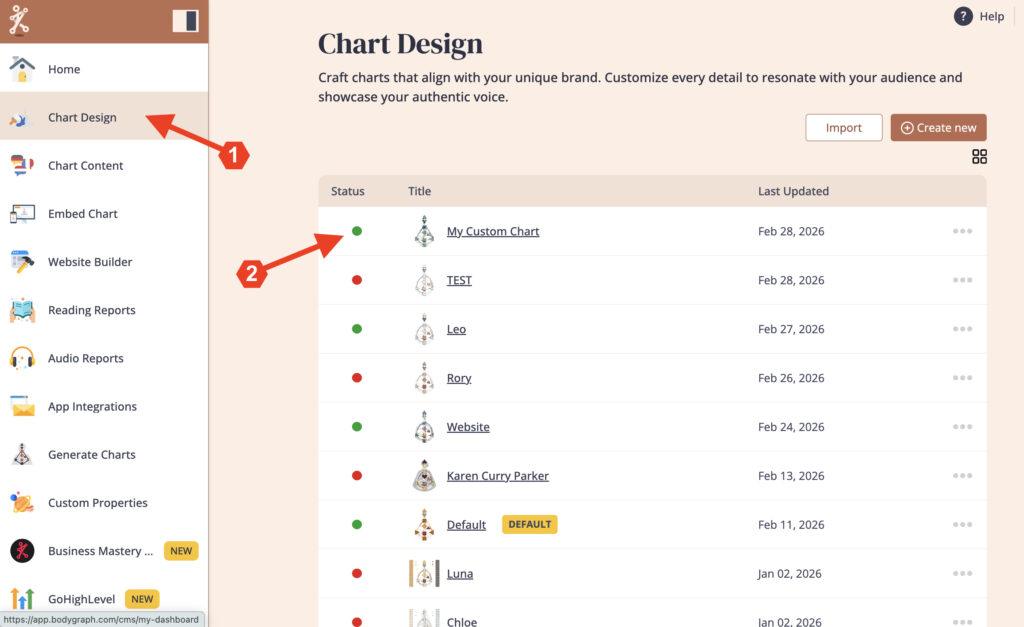
1. Open ‘Chart Design‘ and select the chart you want to change the color and style of the planet icons.
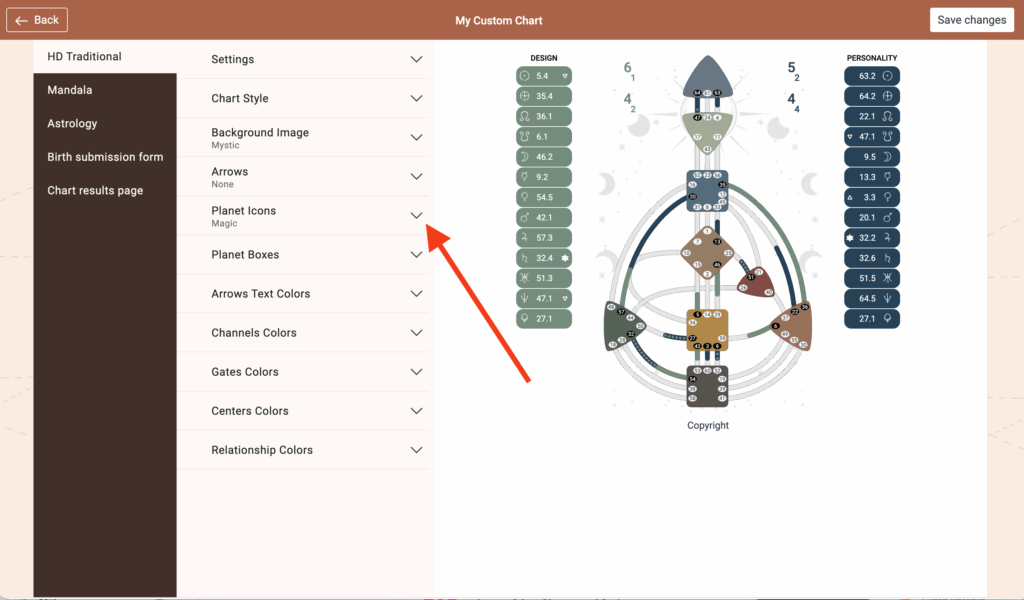
2. Click on ‘Planet Icons’ to expand the menu.
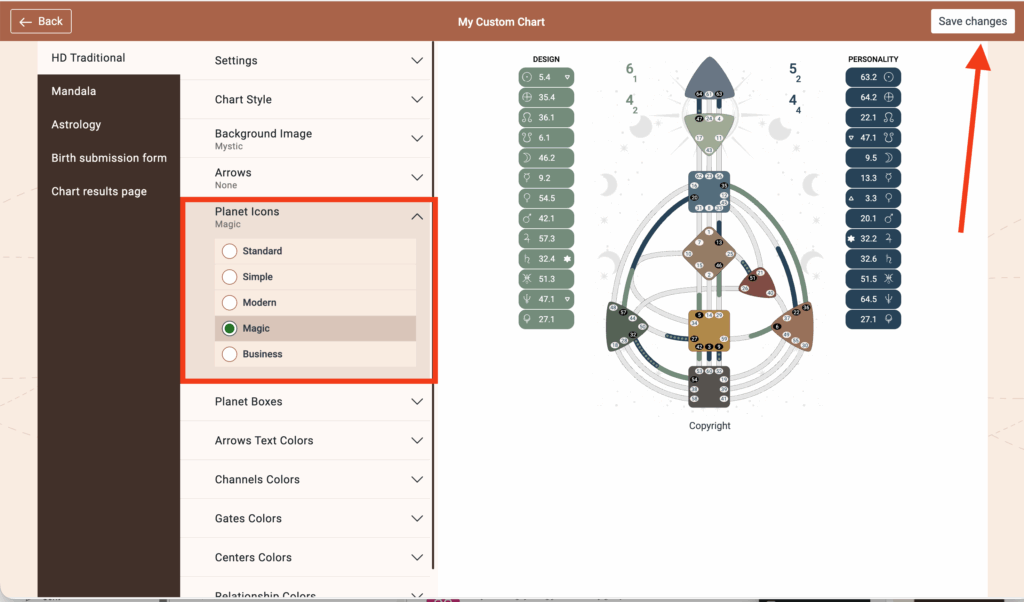
3. Select a design and then click save changes.
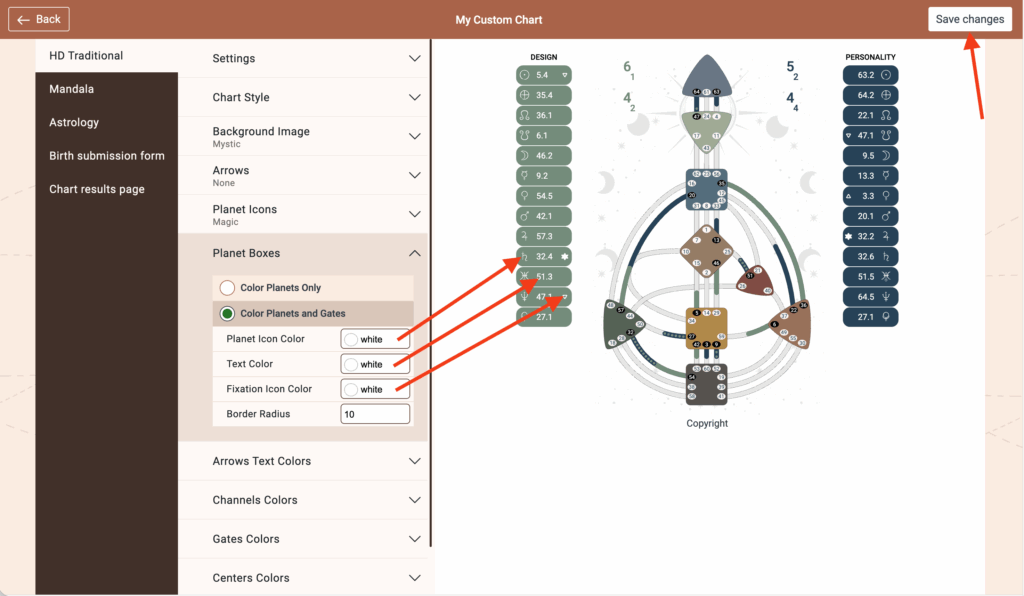
To change the color of the Planet Icons on the Human Design Chart, proceed as follows:
1. Click on ‘Planet Boxes’ to expand the menu
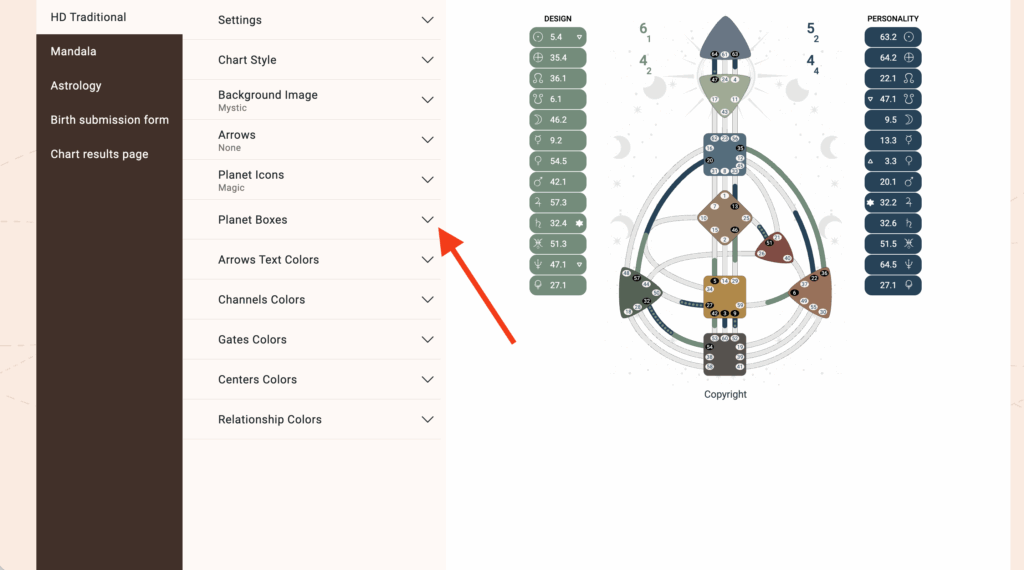
3. Change the color of the planet icon, the text colors and/or the fixation icon color and click save.
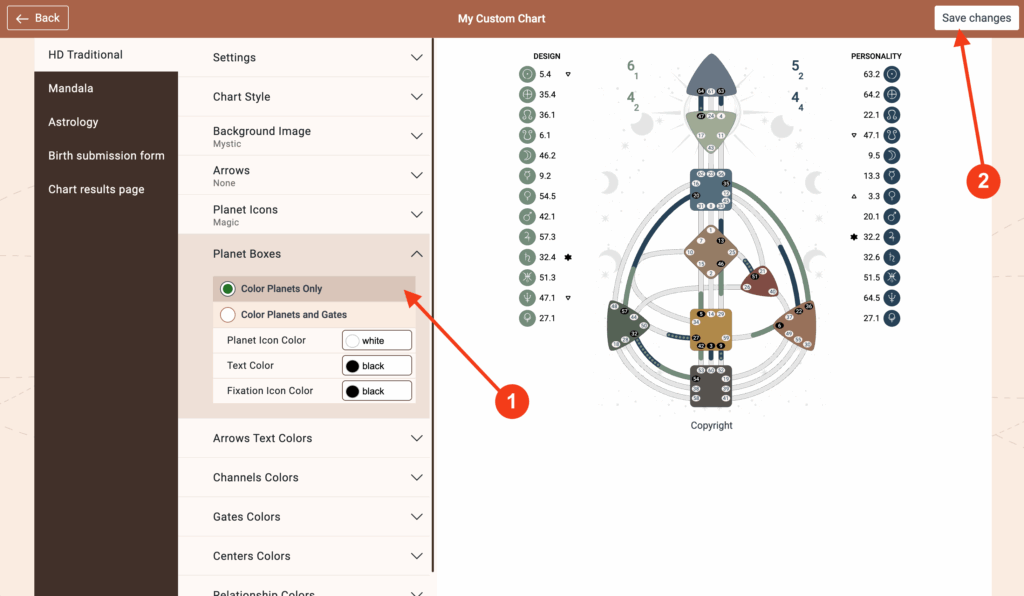
From this menu you can also choose to have color around the planet icon only.
Frequently asked questions:
– Do I need to re-embed chart after making changes in Chart Design?
No. Changed design at the embed code will automatically update your integration at your website, re-embedding is not required.
– How do I change the color of the Planet / Gate boxes?
These can be changed at Channel Colors
Still have questions, is above guide outdated? Please message us on Live Chat or send an email to support@bodygraph.com.
Similar questions:
How do I add color around the planet icons only?