
To create an audio report, proceed as follows:
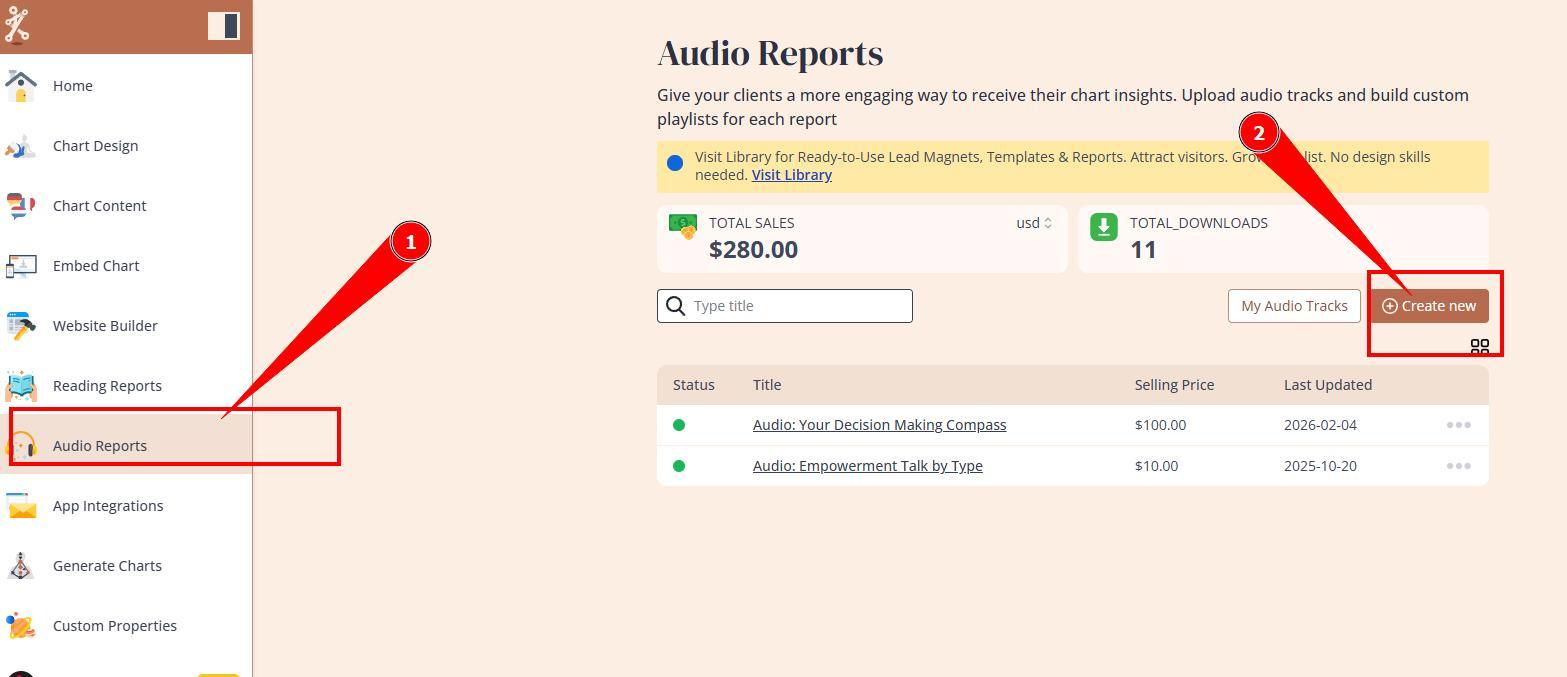
1. Navigate to “Audio Reports” and click on “Create new” button.
2. Give your report a name and save.

3. Rename the 1st chapter.

4. Click on “Upload Track”.

5. Give your track a unique name. Multiple tracks with the same name are not possible.

6. Add your audio file using drag and drop or click inside to select.

7. Select the property you want. Leave it blank if the audio is for everyone.


8. Click “Save”.

9. Your track is now included in your playlist and saved in your track list. You can use this track for several reports by clicking on “Add Track”.

10. Add more tracks and click on “Preview” to check out the audio report.

11. Enter the data and a preview player will open.

12. Download the audio report if you like.
Still have questions? Please message us on Live Chat or send an email to support@bodygraph.com.