
Selling digital, PDF, or audio reports through Bodygraph.com requires an external payment handling app. Bodygraph itself does not process payments, manage discount codes, or take commissions. All financial transactions happen through the third-party app you connect. This guide walks through the available integrations, how to connect them correctly, and the most common mistakes that prevent successful report delivery.
Payment Apps Supported by Bodygraph.com
Bodygraph currently integrates with four external payment providers:
• PayPal
• Stripe
• ThriveCart
• WooCommerce (for WordPress users)
If you use any website builder other than WordPress, then WooCommerce is not available and you will choose between Stripe, PayPal, or ThriveCart.
Important note for PayPal users
A personal PayPal account cannot be connected. You must use a PayPal Business account to access the credentials required for integration.
Understanding Credentials and Webhooks
Every payment app requires two components:
1. App Credentials
Examples include:
• Stripe secret key
• PayPal client ID and secret
• WooCommerce API keys and URLs
• ThriveCart product URLs
These credentials allow the third-party app to handle the actual payment and receive the funds.
2. Webhooks
Webhooks signal back to Bodygraph.com that the payment was successful. When correctly set up, the webhook triggers:
• Download button activation
• Email delivery for paid reports (if enabled)
• Access to audio files where applicable
• Checkout success notifications in the website builder
If the webhook is missing, the system cannot deliver the report even if the payment succeeded.
This creates a dangerous scenario – funds are collected, but the client receives no download. Most failed setups come from missing or incorrectly configured webhooks. Therefore testing the setup by making live purchases is essential before offering sales for the clients.
One Webhook or Two – Depends on Your Setup
If you use an external website + embed code
You must set up:
• One webhook from inside the App Integrations
• No additional webhook required
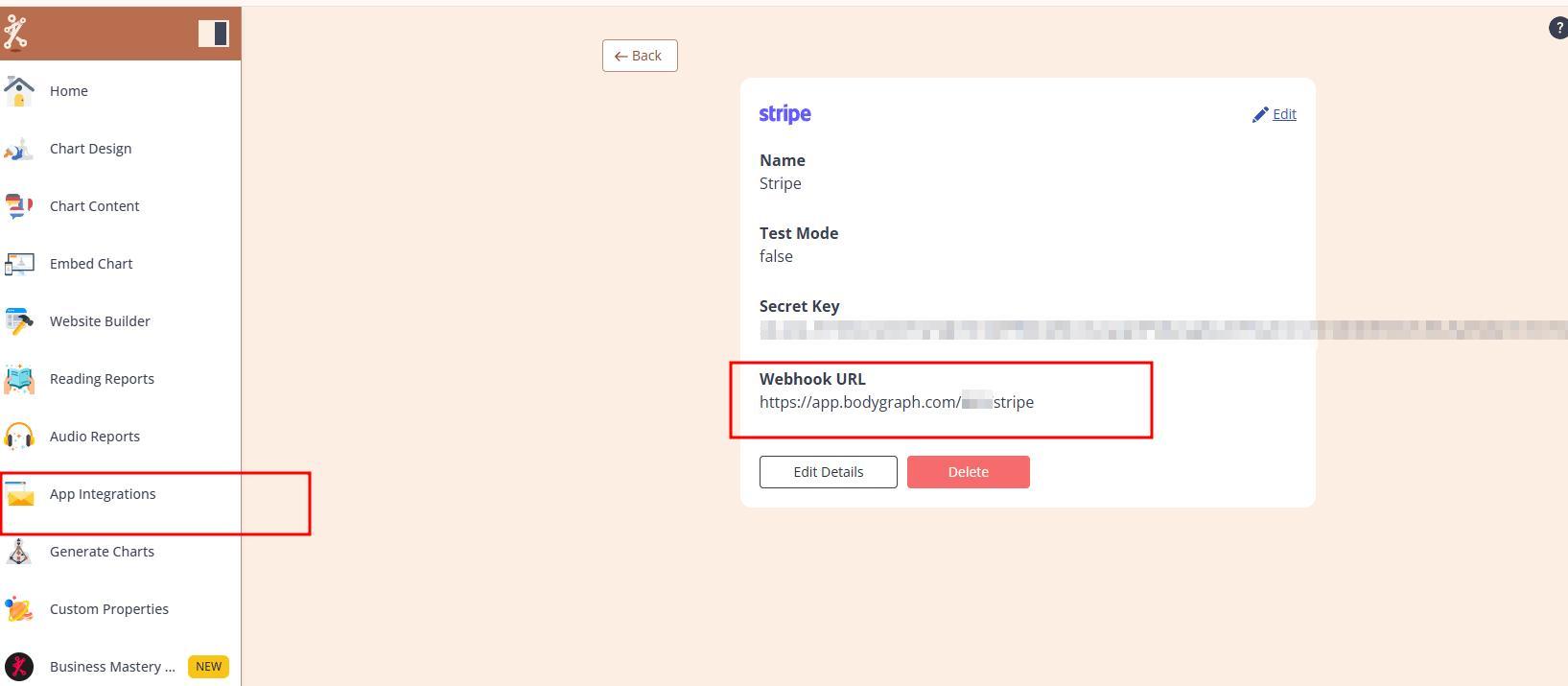
If you use the Bodygraph Website Builder
You must set up:
• The main webhook from App integrations
• An additional Website Builder webhook to trigger checkout success
This means two active webhooks inside your payment app.
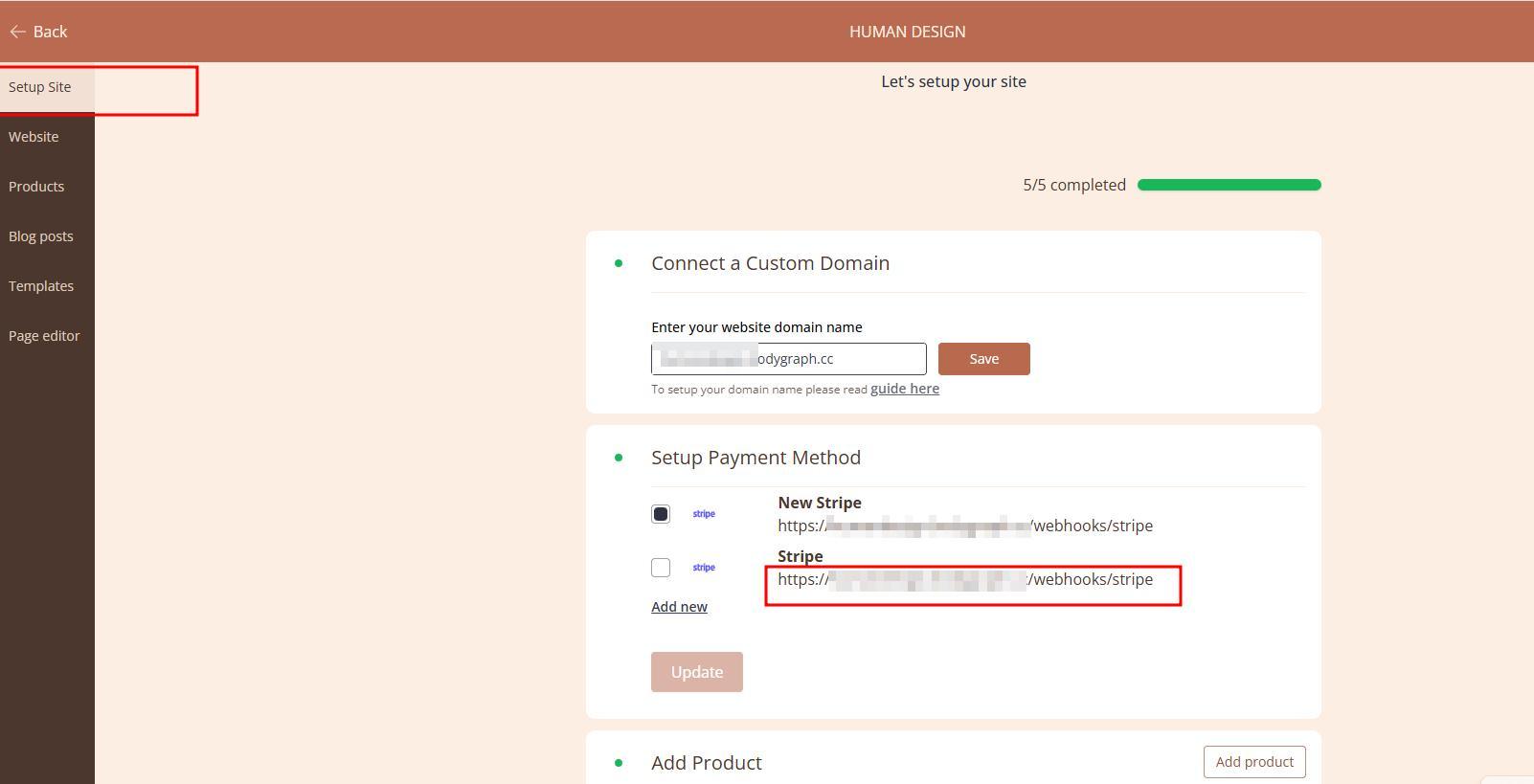
Skipping the App or Website Builder webhook and not testing the connection are the most common mistakes that causes issues when sales go live and being offered for clients.
Where Discount Codes Are Created
Discount codes are always created inside your payment app, not inside Bodygraph.
• Stripe – inside Products or Coupons panel
• PayPal – third-party coupon tools only
• ThriveCart – inside the product setup
• WooCommerce – inside the Coupons section
Bodygraph does not generate or manage discount codes for reports.
Understanding the App Indicator
Inside App Integrations, the status indicator:
• Does not show whether the app connected successfully.
• It shows whether the payment app is currently assigned to any report.
It is normal for the indicator to remain red after a successful connection until you assign it to a paid report.
Special Rules for ThriveCart and WooCommerce
Unlike Stripe and PayPal, these two apps require:
• A separate payment app connection for every single report
• A unique product URL created inside your ThriveCart or WooCommerce store
• Matching prices between Bodygraph and the product page inside the Thrivecart or WooCommerce app
If the prices differ, the checkout may fail.
Stripe and PayPal require only one connection that can be reused across all reports.
Testing Your Report Before Selling
Before offering any paid report to clients, perform a live test:
• Set report price to $1
• Lower than $1 may not trigger the webhook in Stripe or PayPal
• 100 percent discount codes usually fail to trigger webhooks
• Run a chart on your website or add product to the website builders checkout
• Go through checkout exactly as a client would
• Confirm that:
– the payment appears in your third-party app
– the webhook triggers and download pops up at the embed or success message shown on website builder
– the download or/and email delivery works (do not forget to check spam, trash and promotions folders)
Releasing a report without testing is highly discouraged because you cannot guarantee correct delivery.
Common Setup Mistakes to Avoid
1. Wrong credentials.
Example – adding the Stripe publishable key (PK) instead of the secret key.
2. Completing only part of the guide.
Most issues occur because the webhook setup step was skipped.
3. Missing the additional Website Builder webhook
If you use Bodygraph’s website builder, two webhooks must be active.
4. Multiple failed attempts with unclear titles
Many users create several payment apps with random names, then assign the wrong one to a report. This is especially important for apps such as Thrive Cart and WooCommerce.
Use clear titles such as:
• Stripe Payment
• PayPal Payment
• ThriveCart – Report title
• WooCommerce – Report title
Clear naming prevents accidental mis-assignment.
Frequently Asked Questions
Can I add a payment app that is not on the list?
No. Integrations must be implemented at the development level and only third party platform has required (unrestricted) API documentation.
You may send a suggestion to support@bodygraph.com, but new apps can be added only if:
• They have public API documentation
• They do not have local or residency-based restrictions
Example – Mercado Pago cannot be integrated due to residency-restricted API access.
Can I request additional currencies?
Yes. Contact support@bodygraph.com and your currency can be added to the dropdown.
Can one report have multiple payment apps?
No. Each report can be connected to one payment app only for the reports sold via embed code report boxes. To offer multiple payment options, duplicate the report and assign one app to each.
Website builder checkout can be connected to multiple checkouts such as Stripe and PayPal at once.
Can I test the purchase without paying?
No. You must run a real transaction. Set the price to $1 and test the report through your live website. Releasing report sales without testing it, increases the risk of transaction fails and customer complaints.
Also check video tutorial below:
Still have questions? Is above guide outdated? Please message us on Live Chat or send an email to support@bodygraph.com.