
To add a page number to your report, proceed as follows:
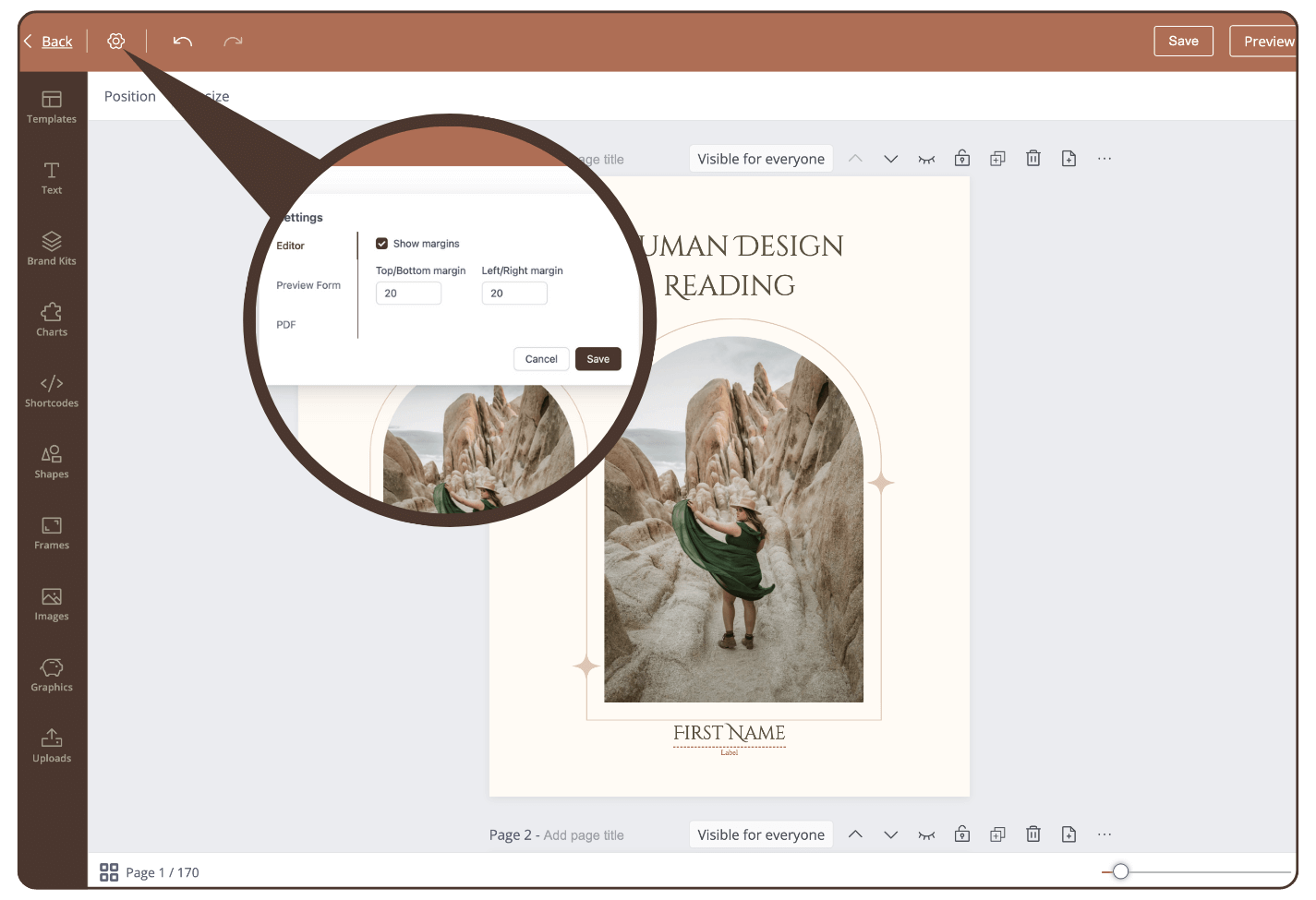
Step 1: Click on the Settings icon
The settings will open.
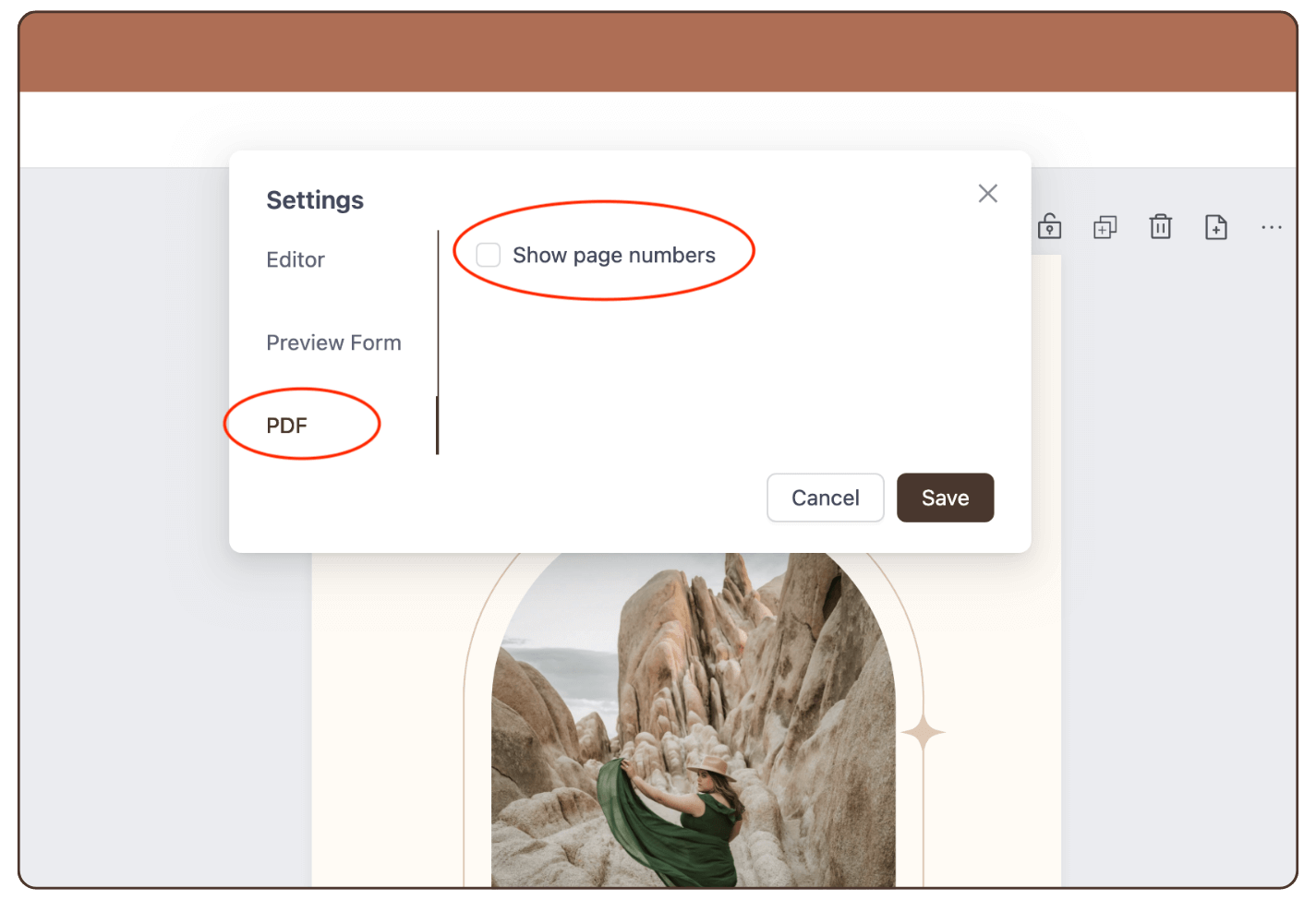
Step 2: Click on ‘PDF’ and activate ‘Show page numbers’
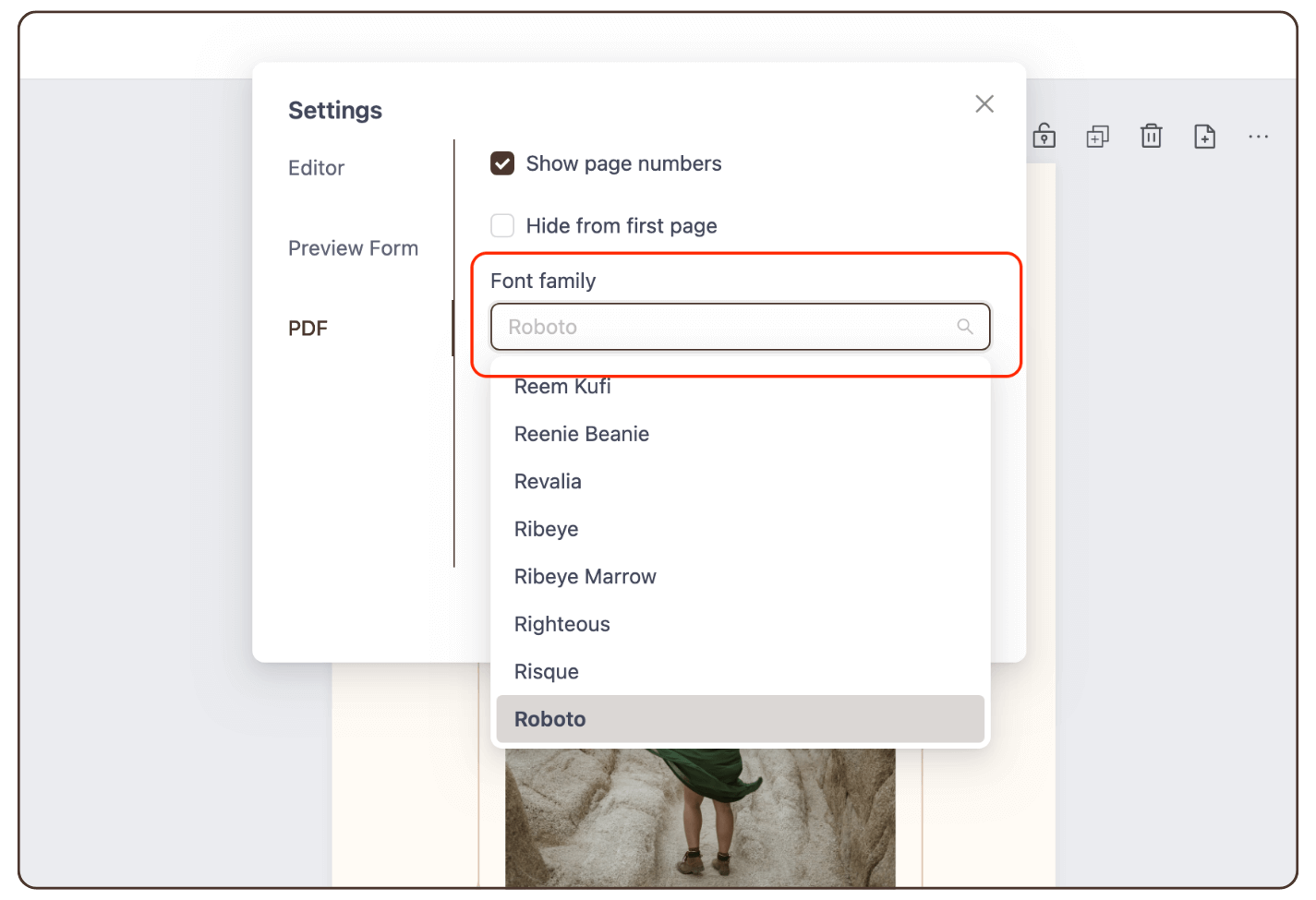
Step 3: Select a font
Step 4: Select font size.
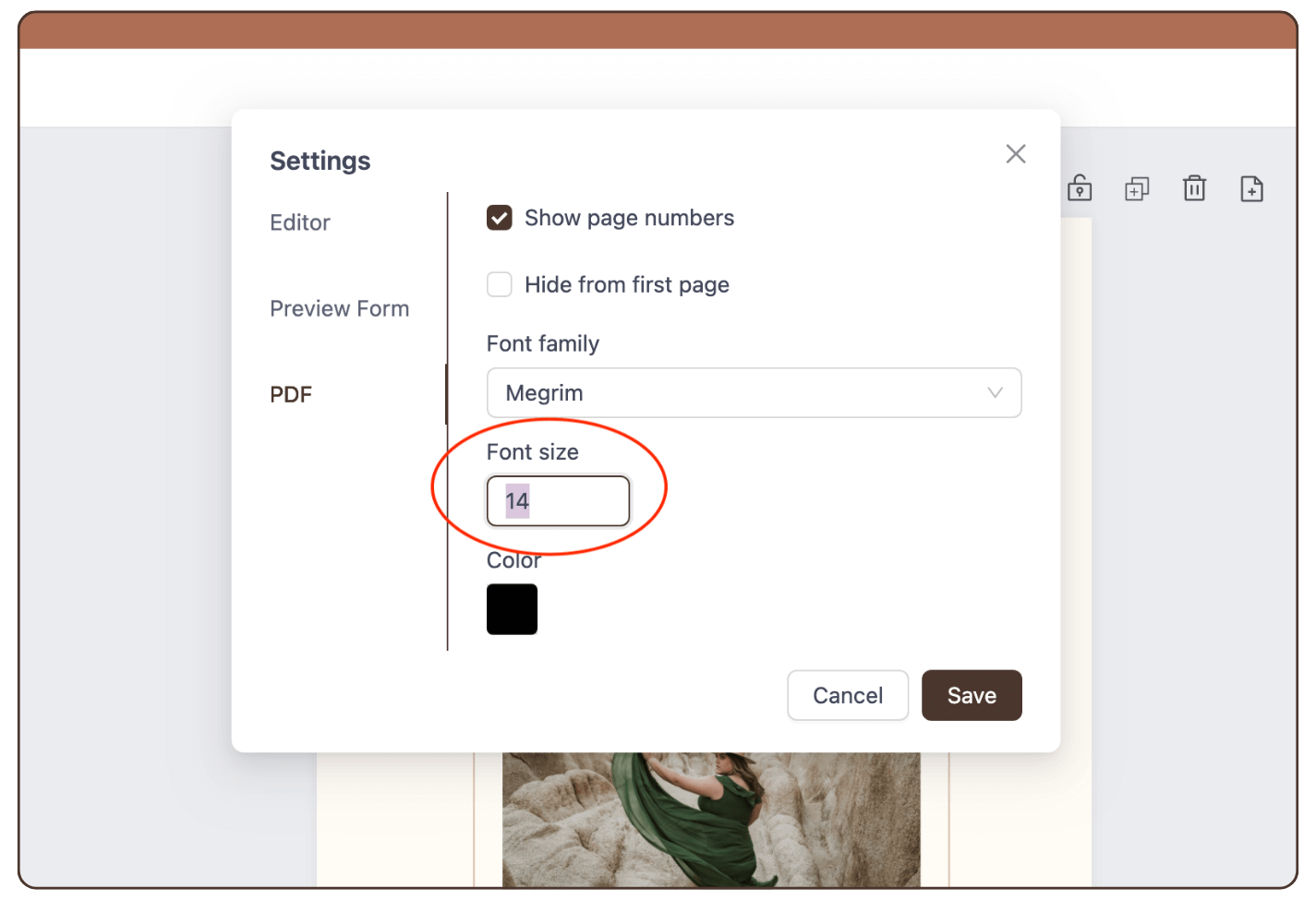
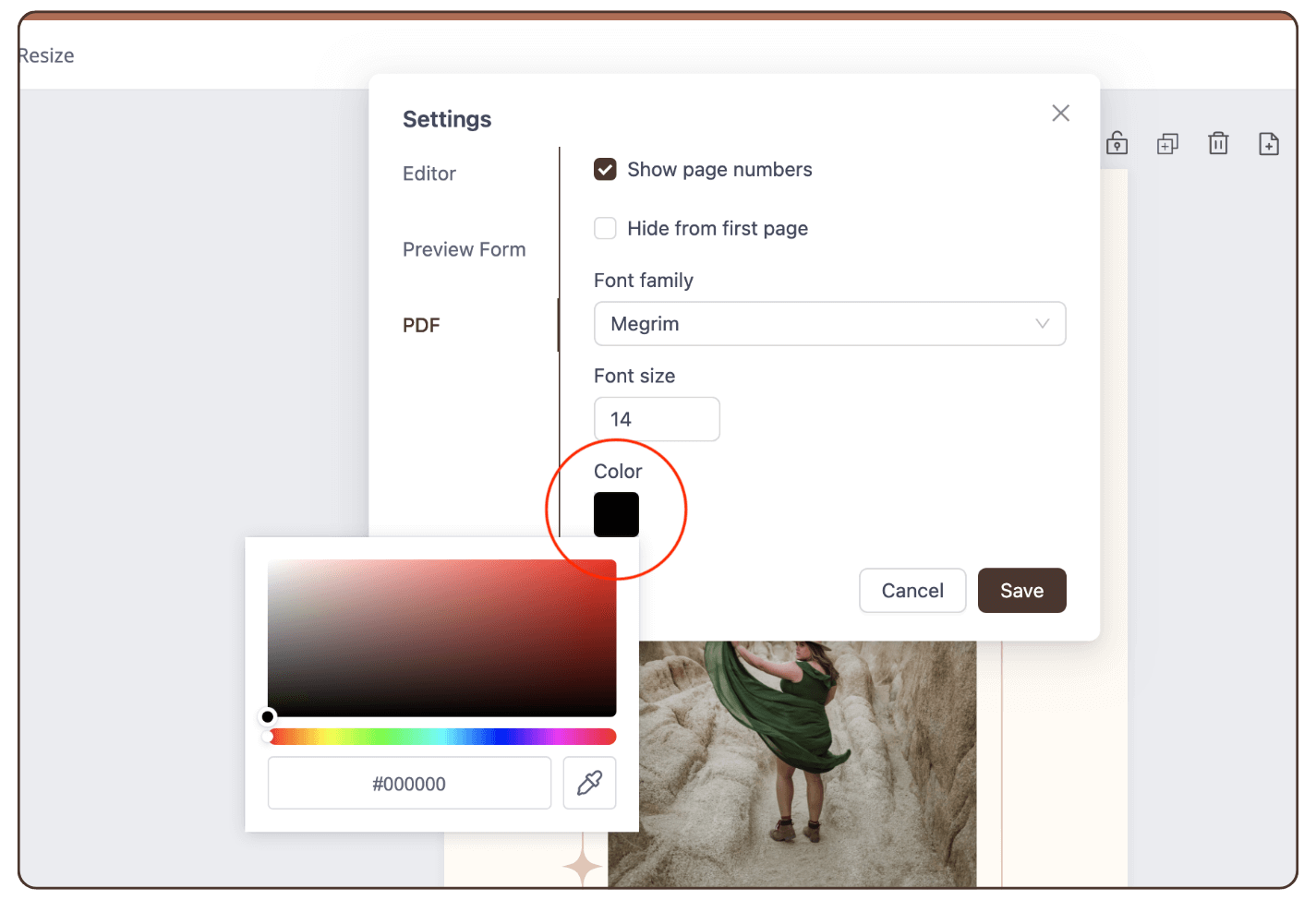
Step 5: Select font color.
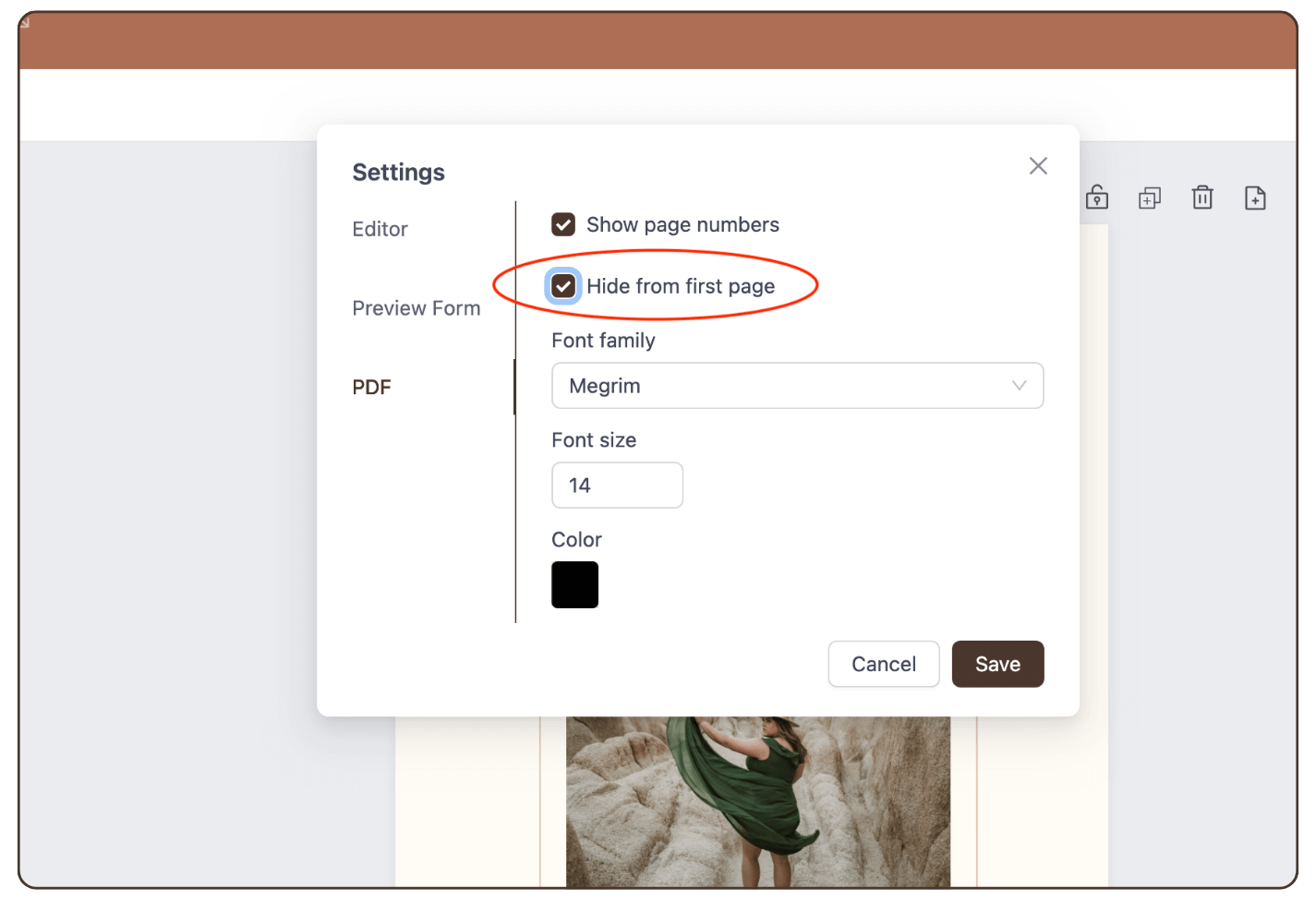
Step 6: If you want to hide the page number on the first page of the report, click on ‘Hide from first Page’.
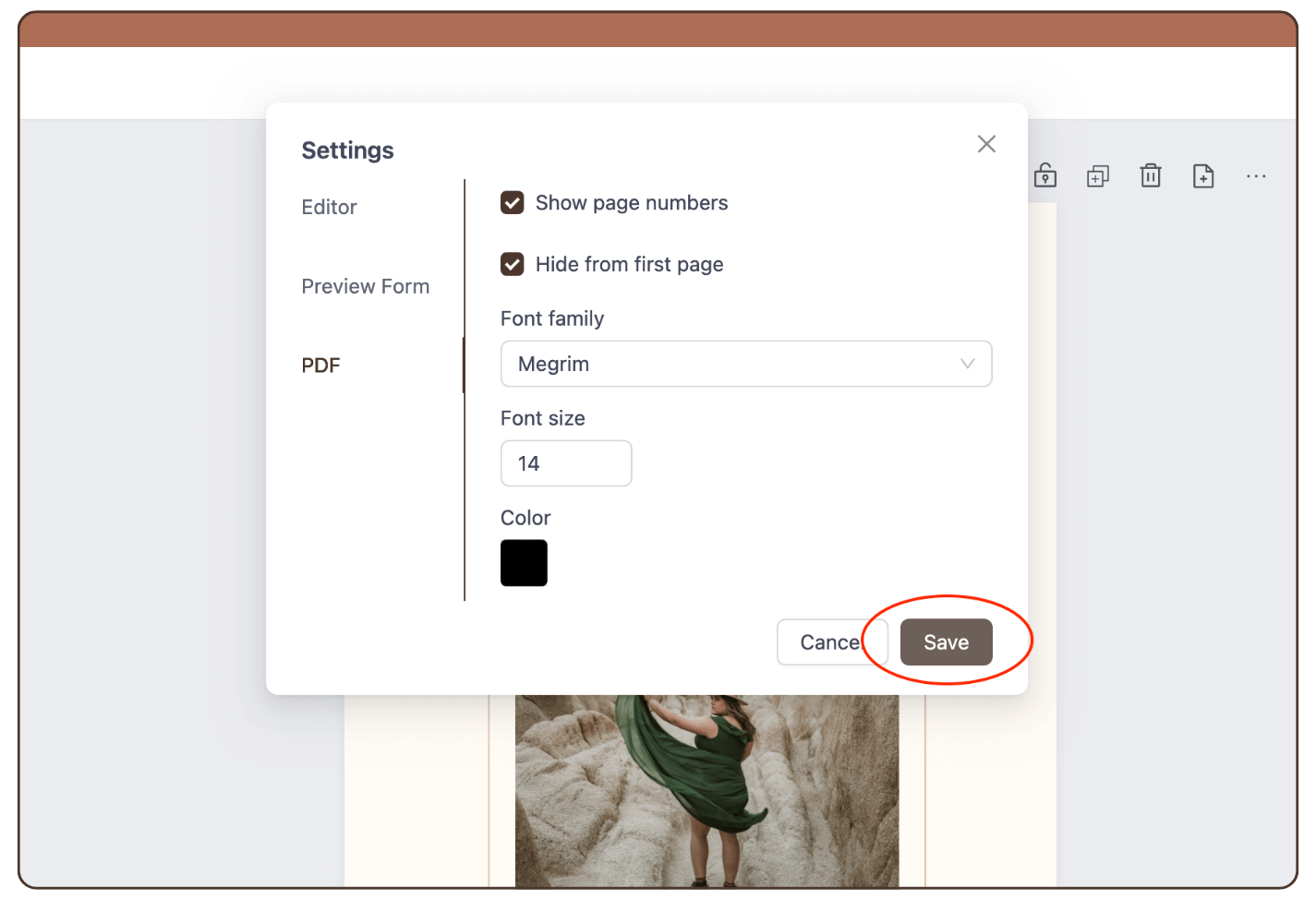
Step 7: Click ‘Save’.
Result: The number of pages is displayed in the PDF.
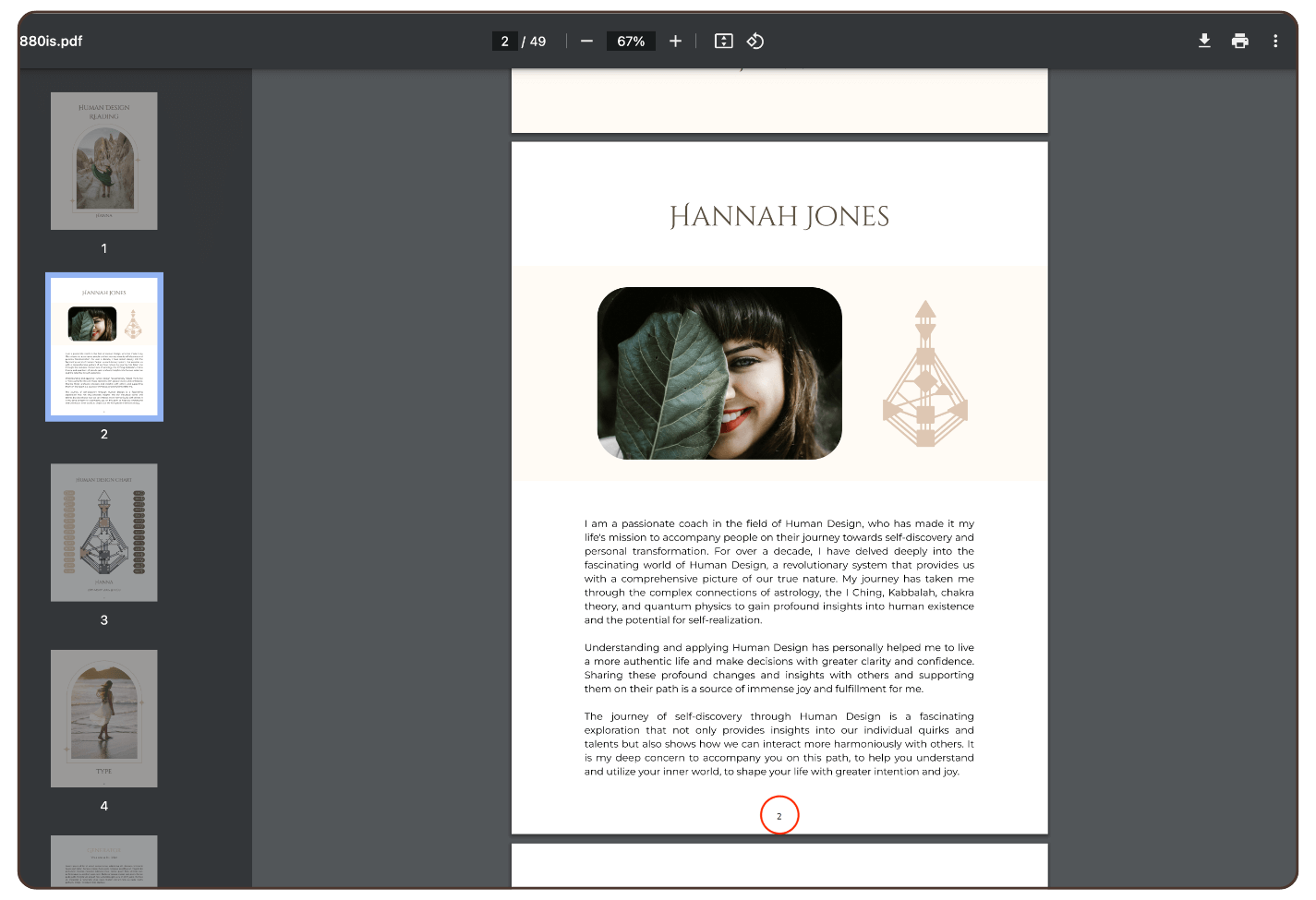
IMPORTANT: page numbers show up only at generated reports not at the editor.
Still have questions, is above guide outdated? Please message us on Live Chat or send an email to support@bodygraph.com.