
To change Agreement checkbox text below email field please follow the steps listed below:
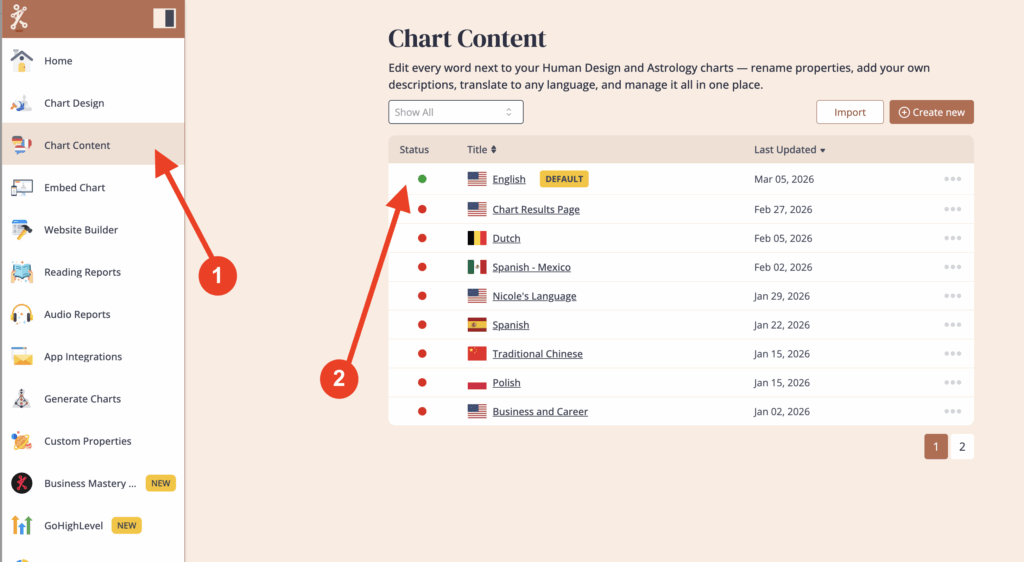
Click on ‘Chart Content’ and then select the language that is assigned to the embed code that you’re using for your website.
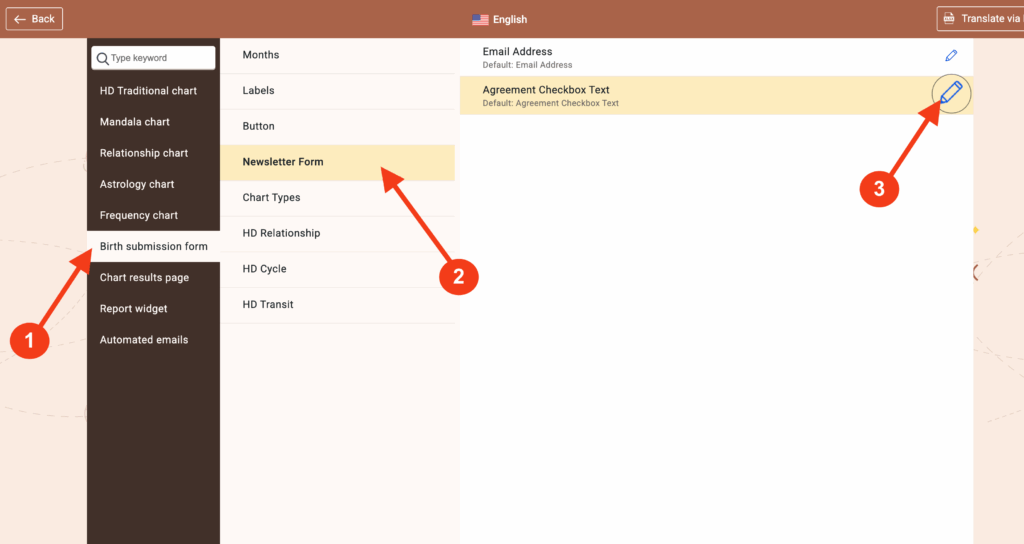
Click on ‘Birth submission form’ then ‘Newsletter Form.’ Click on the pencil icon next ‘Agreement Checkbox Text’ to edit the text.
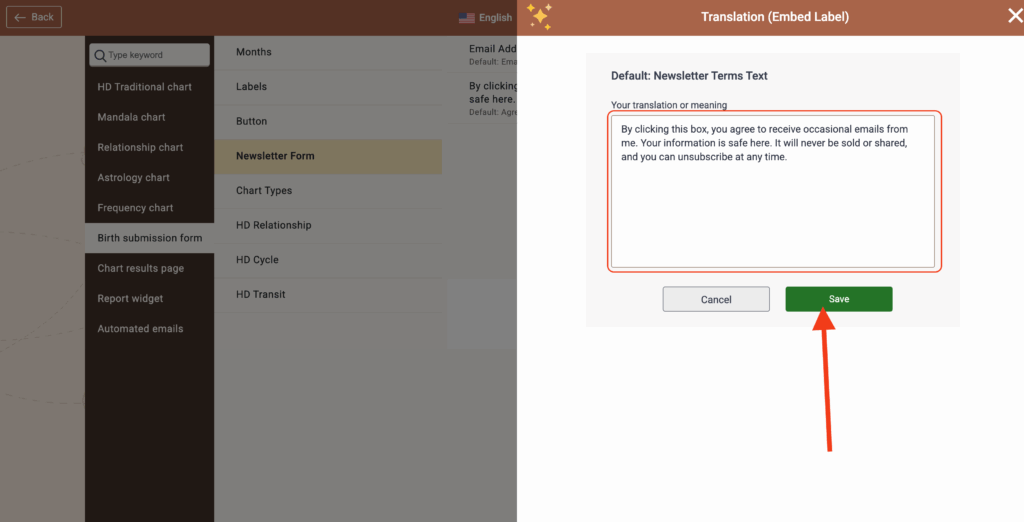
Make your edits and then click ‘Save’
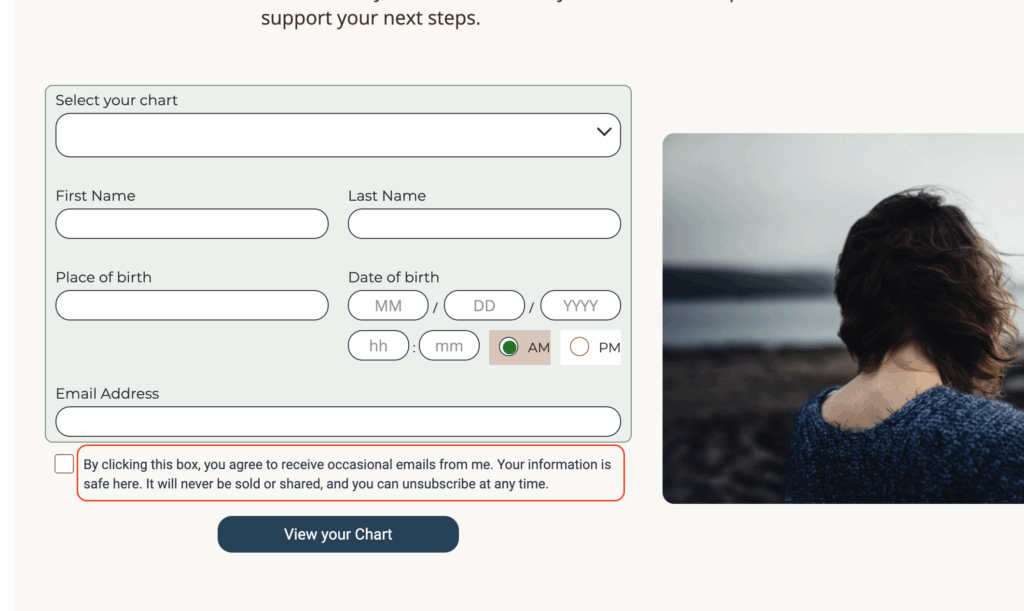
Go to your website to test the result.
NOTE: To add links (for example to your Terms & Conditions or Privacy Policy webpage) Check out this Help Centre Article:
Still have questions, is above guide outdated? Please message us on Live Chat or send an email to support@bodygraph.com.