
If you are not seeing the second person selector when running a Relationship Chart inside Generate Chart, it is most likely because personal details are hidden. To fix this:
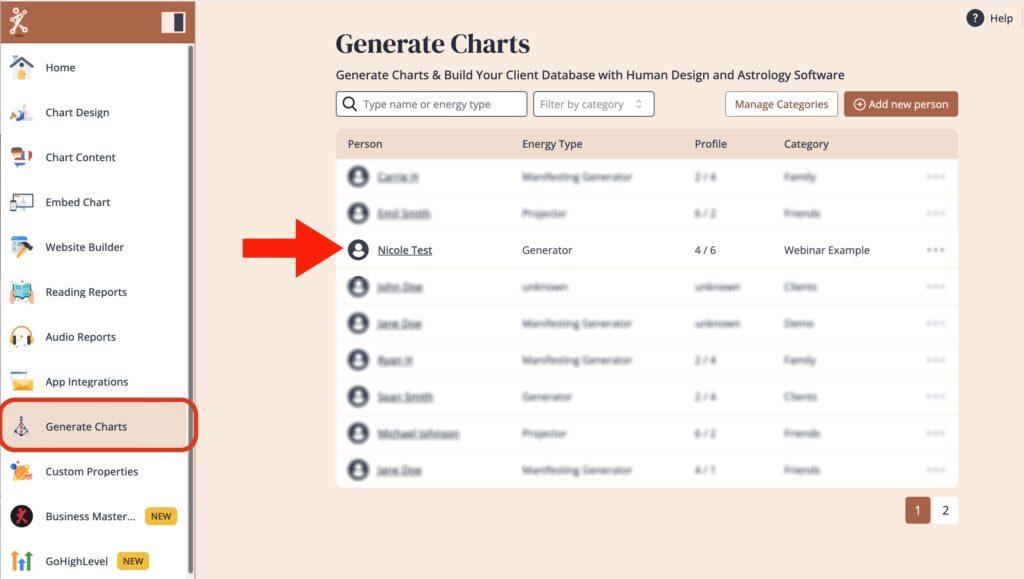
Click on the first person you are using for the Relationship Chart
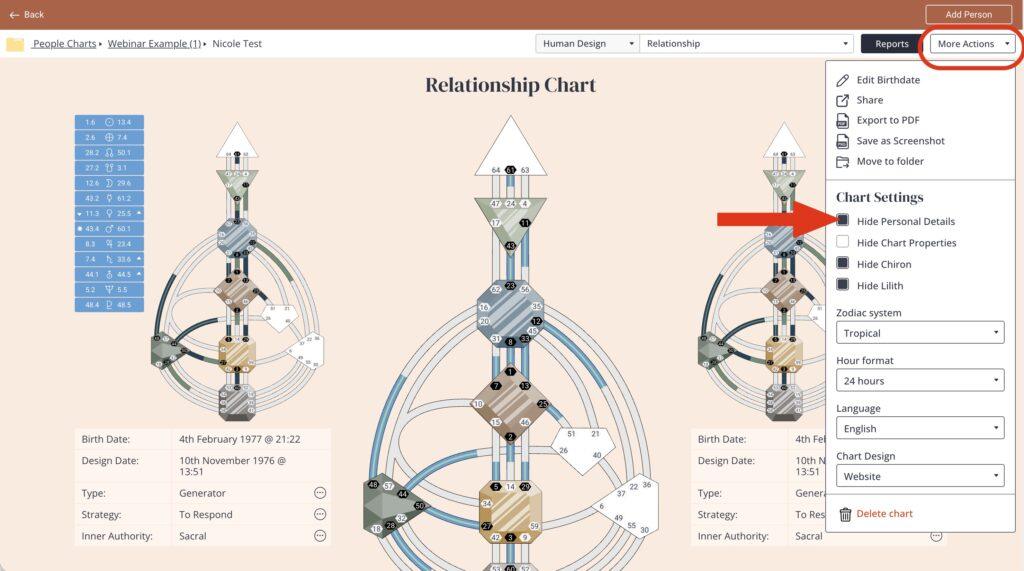
Click on ‘More Actions’ and then deselect ‘Hide Personal Details’
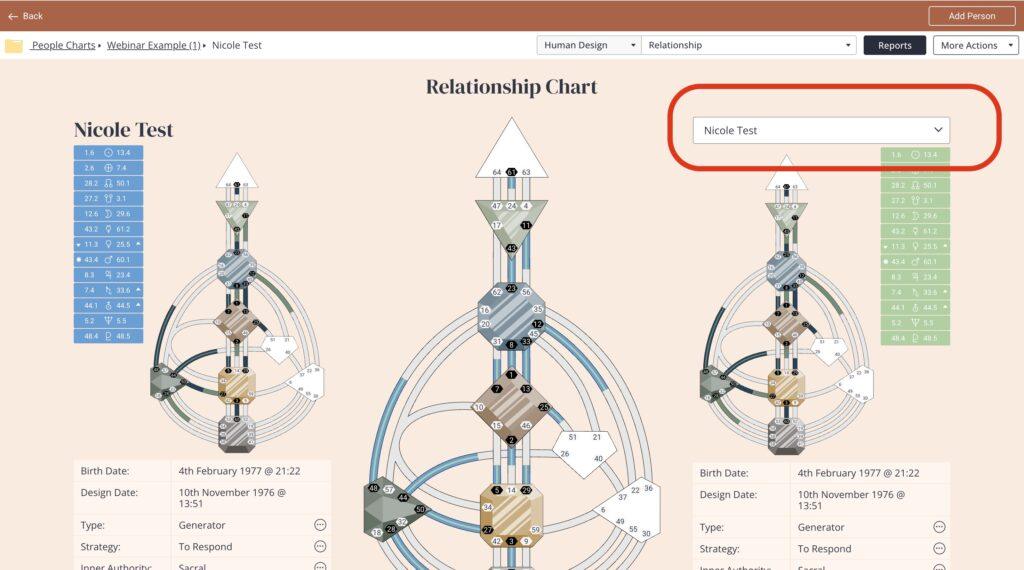
This will allow you to select from a drop down menu of people already entered at Generate Chart.
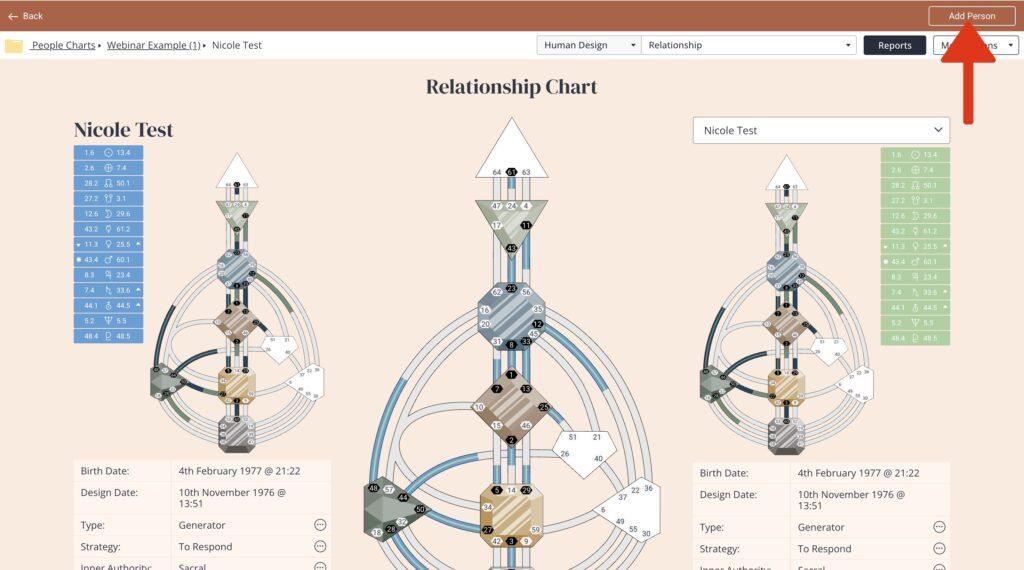
You can also add a new person by clicking ‘Add Person’ and entering their birth details.
Related articles:
How to use Generate Charts tool?
Still have questions, or is above guide outdated? Please message us on Live Chat or send an email to support@bodygraph.com.
Similar Questions
How do I add a second person to create a relationship chart in Generate Chart?
Why did the drop down box disappear when running a relationship chart in Generate Chart?