
To add a custom field to the chart submission form, such as a telephone number, please follow these steps:
Step 1
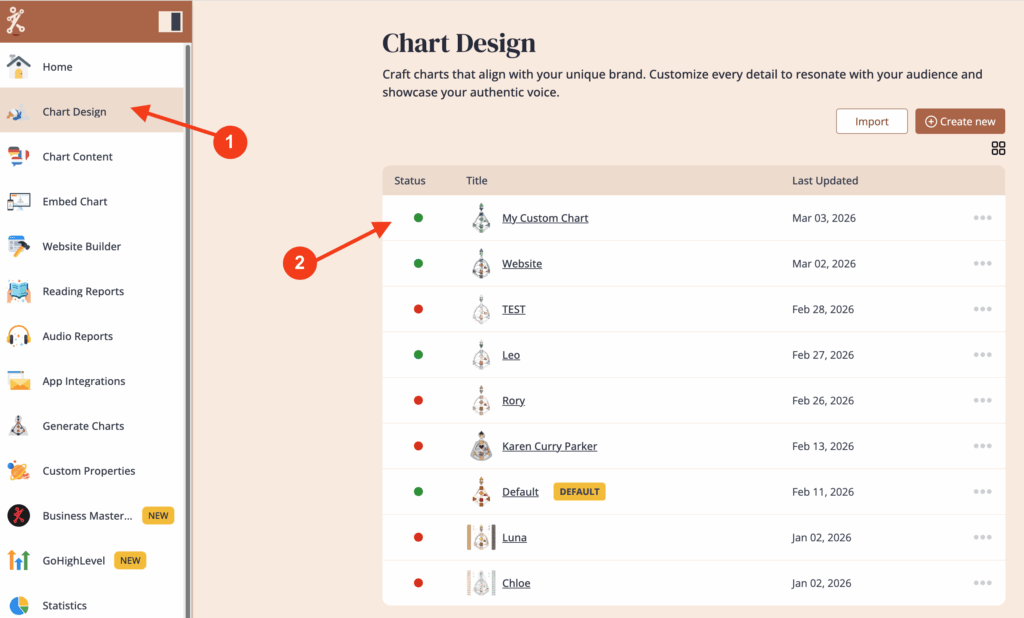
Go to Chart Design and click on the chart you want to add the custom field to the chart submission form.
Step 2
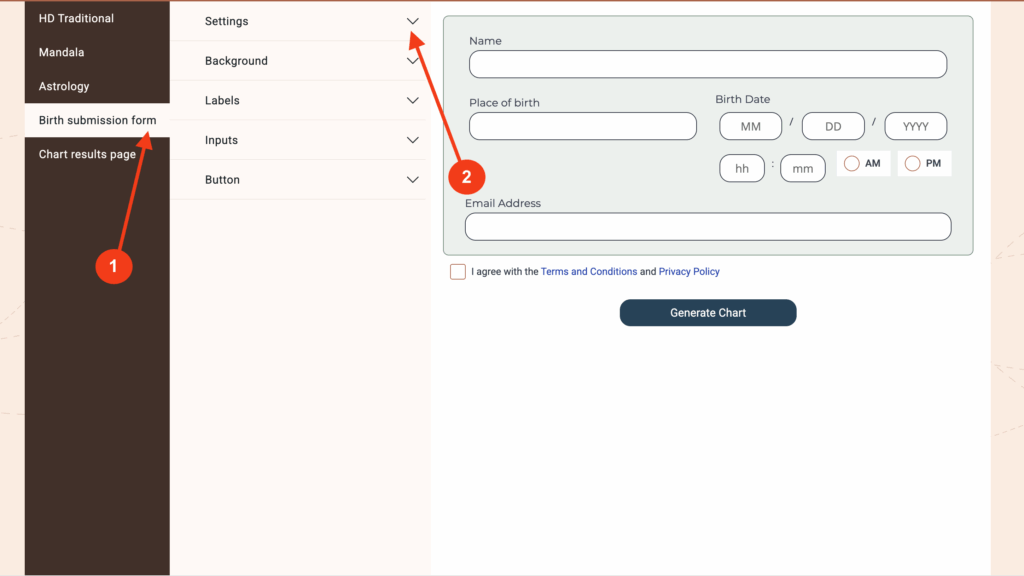
Click on ‘Birth submission form’ and then on ‘Settings’ to expand the menu
Step 3
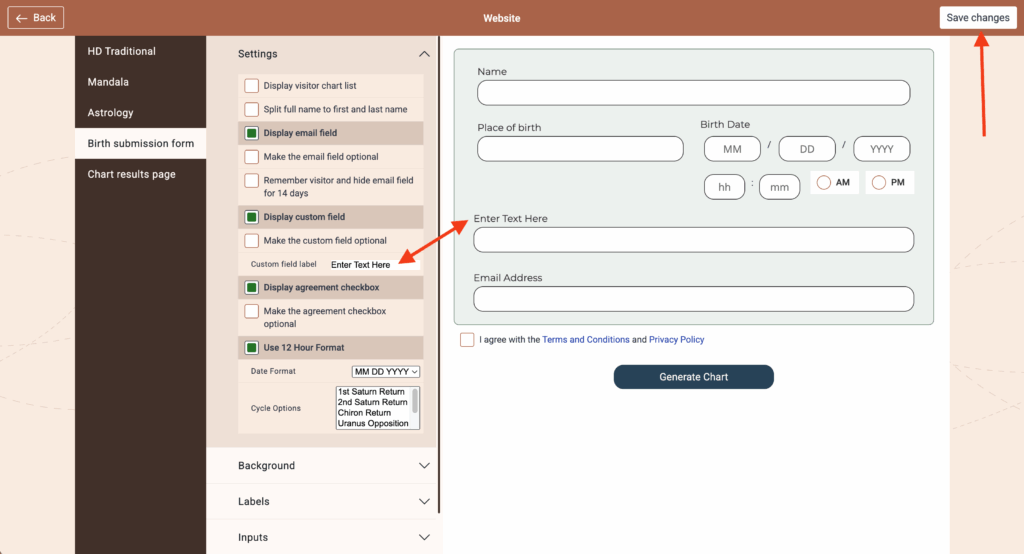
Click on ‘Display custom field’ and then enter your text to name the custom field (ie: Phone Number.) Be sure to ‘Save changes’ once finished.
Result
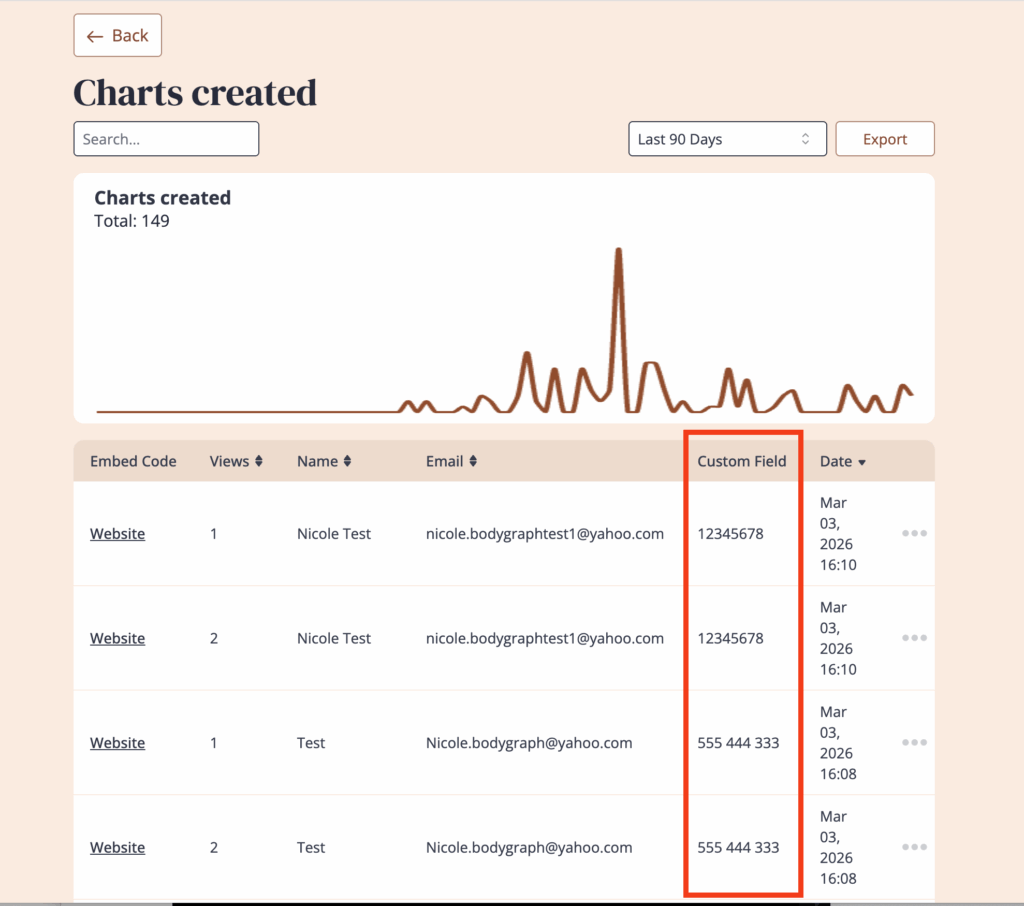
The custom field is displayed in the form and added to ‘Statistics‘.
Frequently asked questions:
– Do I need to re-embed chart after making changes in Chart Design?
No. Changed design at the embed code will automatically update your integration at your website, re-embedding is not required.
Related articles:
Collecting custom field data to apps
Still have questions, is above guide outdated? Please message us on Live Chat or send an email to support@bodygraph.com.