
To change the hour format of the formula in Generate Chart, we proceed as follows:
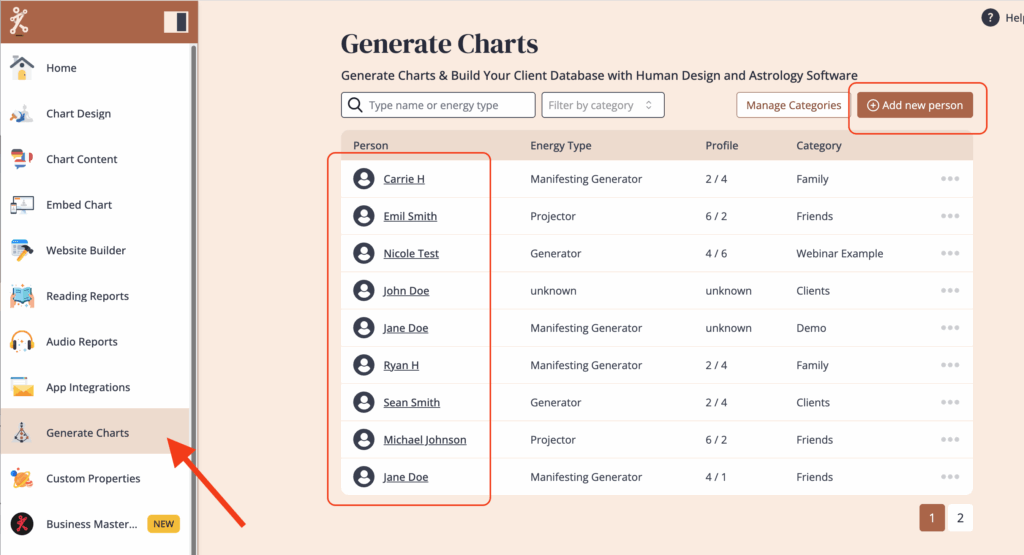
Select ‘Generate Chart‘ from the left menu. Click on a person you have already entered, or click on ‘Add new person’
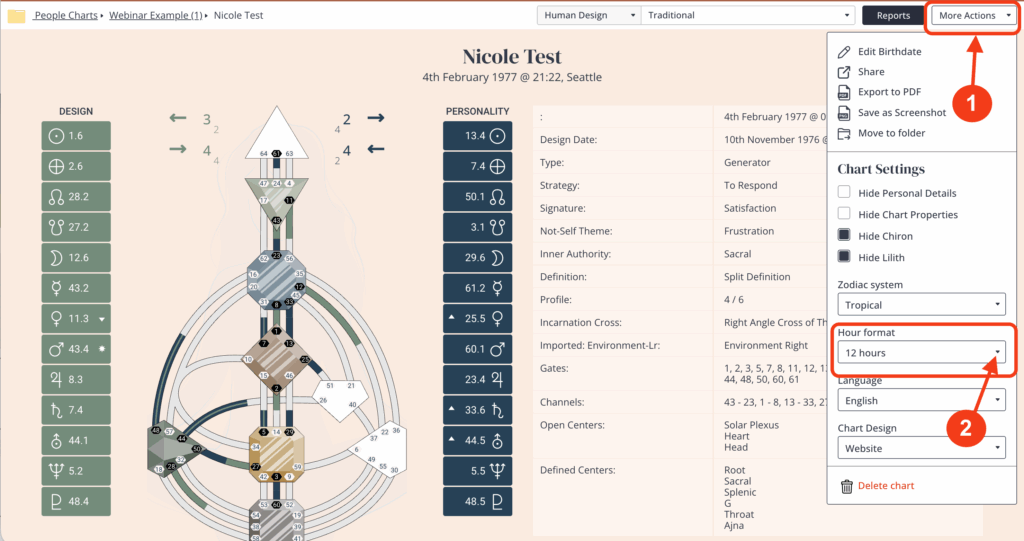
Click on ‘More Actions’ and then click on the ‘Hour Format’ to change between 12h and 24h.
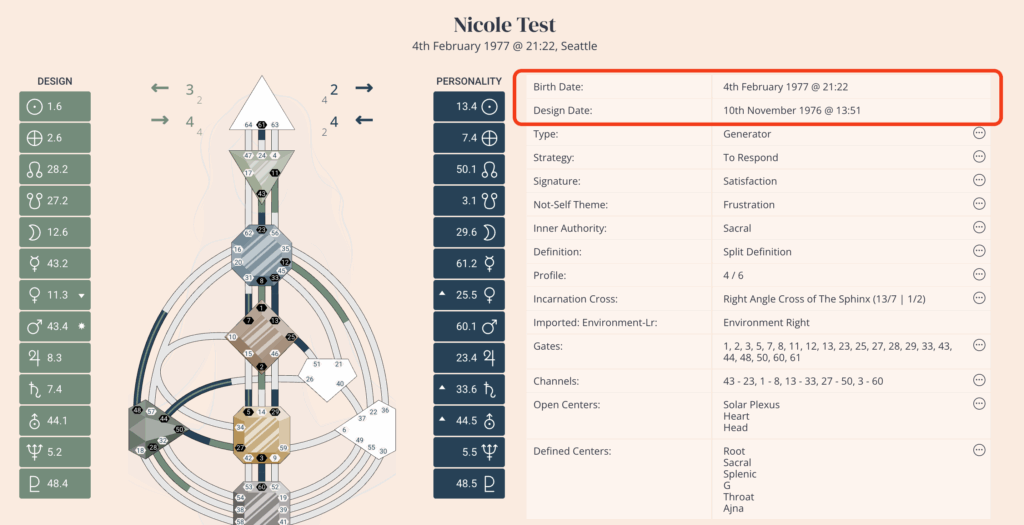
This is where the change will be reflected
Related Articles
Change Date Format (12H/24H) on Birth Submission Form
Still have questions, is above guide outdated? Please message us on Live Chat or send an email to support@bodygraph.com.